
Outlook Performance
So I have received a lot of feedback on outlook performance issues. Many are relating it to a recent update. However, there is more to it then just the update. Over the past year we have changed the retention policy to 5 years for everyone. Awesome most people would say. I have been here long enough to remember when we did not have the 90 day retention policy in place. And the challenges many users had with performance while using outlook. You would think there was a fix someone could apply to solve this. But with the new 5 year retention policy some of the same problems are back. And the recent update has added to the challenge.
I will explain some of the challenges of using the outlook desktop app. But if you want to skip to the potential fixes scroll past the challenges and search for Fixes in this article. If you want the best performance switch to using the web version of outlook located here: https://outlook.office.com/owa.
Performance for outlook is very dependent on your hardware, hard drive, Memory, CPU, networking, secondary mailboxes, as well how much email you have and or receive in between each shutdown and opening of outlook. Outlook uses what is called cached mode. This means it is pulling down every message and storing it in a local cache on your laptop or pc. And there are limits to the size of cache. 50 GB by default but that can be expanded to 100 GB. So, if you have been offline for several days, you may have more messages to download when you first fire up in the morning. If your network connectivity is poor it will often hang outlook as it try’s to pull each message down. Each message has to be enumerated and then pulled down this is a bit time consuming. And if it has issues with this process, it often leaves the user waiting for a bit.
There are situations where outlook must re-enumerate every message it has downloaded. Situations where every message might change i.e. IT makes a change to a Sensitivity tag. And now each piece of email has to be re-enumerated related to that change. Or maybe an update to Office. That changes a formatting bug. And each piece of email has to change because of that formatting bug.
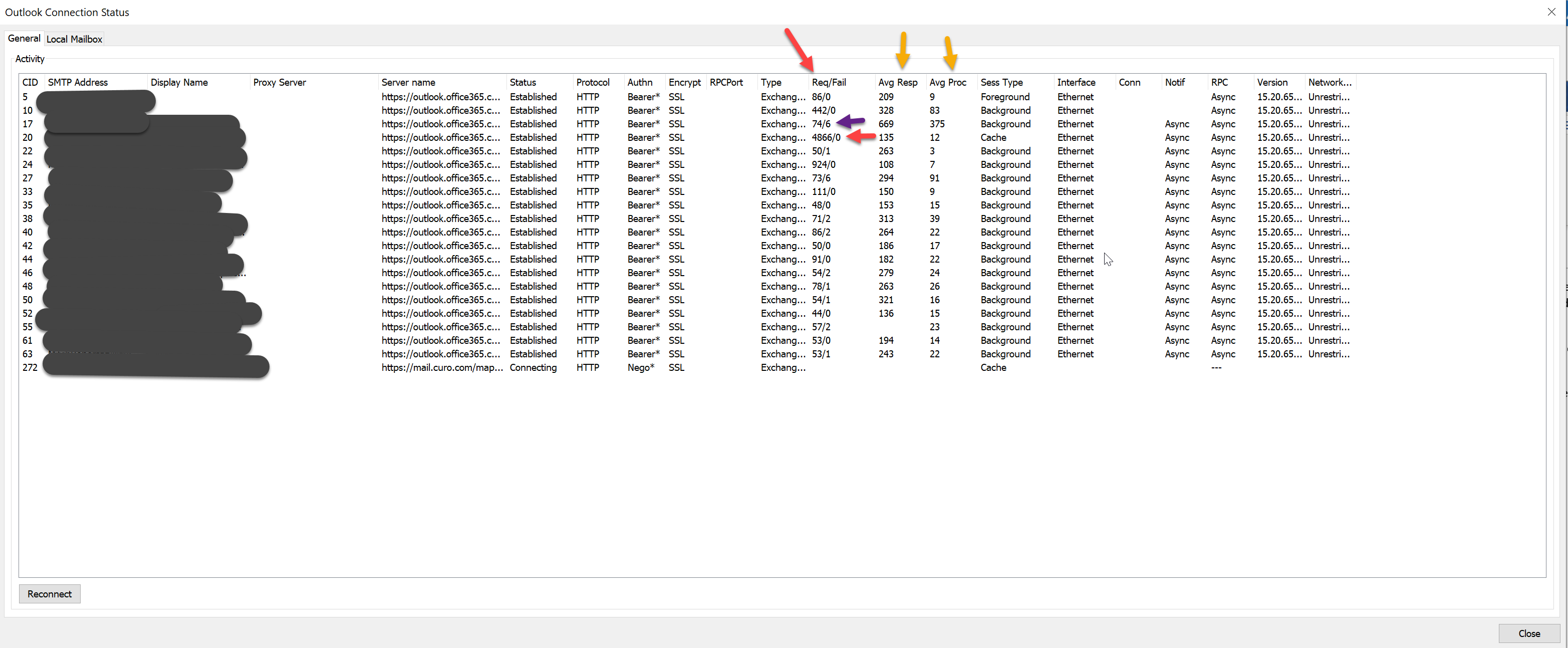
In the screen shot below you can see that my primary mailbox connection I have had 4866 Requests with 0 of them fail. But if you look at one of my connected mailboxes right above (the email abuse Mailbox), I have had 74 Requests with 6 of them failing. And with the default settings those 6 failures for a mailbox I am not even concerned about could cause my outlook to hang. So how do I keep a secondary mailbox from causing my outlook to hang. Also notice some of the stats under avg response time and avg processing time. That starts to tell us a lot about how well the network is running and how well Microsoft is processing the requests.
Fixes
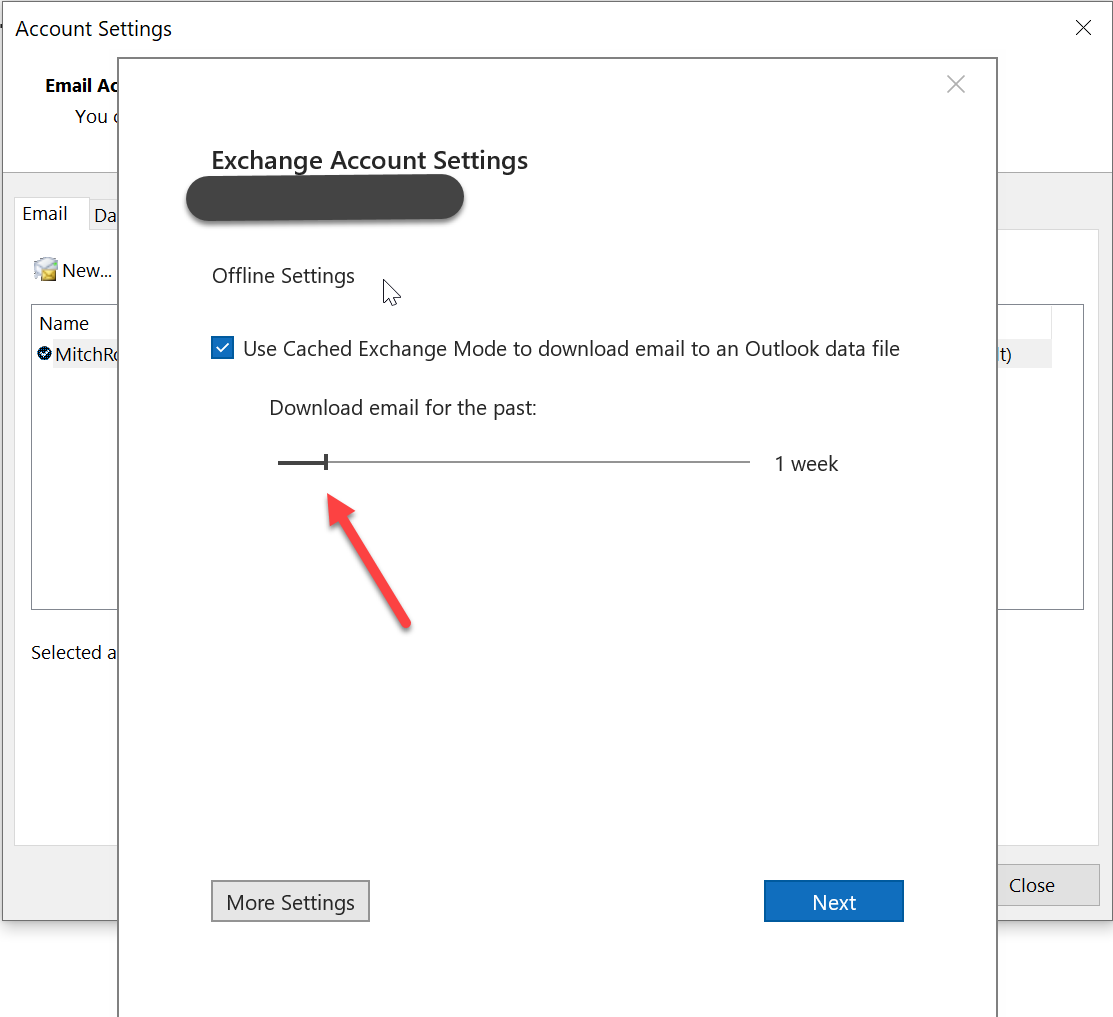
So how do I fix this. Or at least make it better. To start off there are several changes that a user may want to make to their outlook setup. If you are a user that is connected to other mailboxes. I would suggest you go to File\account settings then find your account and select change. Note if you have 2 accounts listed do this for both. Once there you will see a box that says offline settings. Be careful with this, as it will set your outlook client to download only email relevant to the last week or 3 months or 6 months. What ever you select. Understand it does not delete the email. And it is still searchable. But you have to be online to search for old email. So outlook has to show connected in the lower right hand corner for search to work for items still stored in the cloud. This is ONLY for what you want to see cached on your local machine. If you set this to 1 week and you decide to Move it back to 6 months or a year. Be aware it may take a while to pull it all back down and most likely you will hang again.
So in my case I have it set to 1 week. Because I get a lot of alert emails and such. This saves me in the re-enumeration events listed earlier. It also means my local cache stays small. And I very rarely see hangs they do still happen usually after a long weekend with my pc being left off. But there are other settings that can help as well so read on.
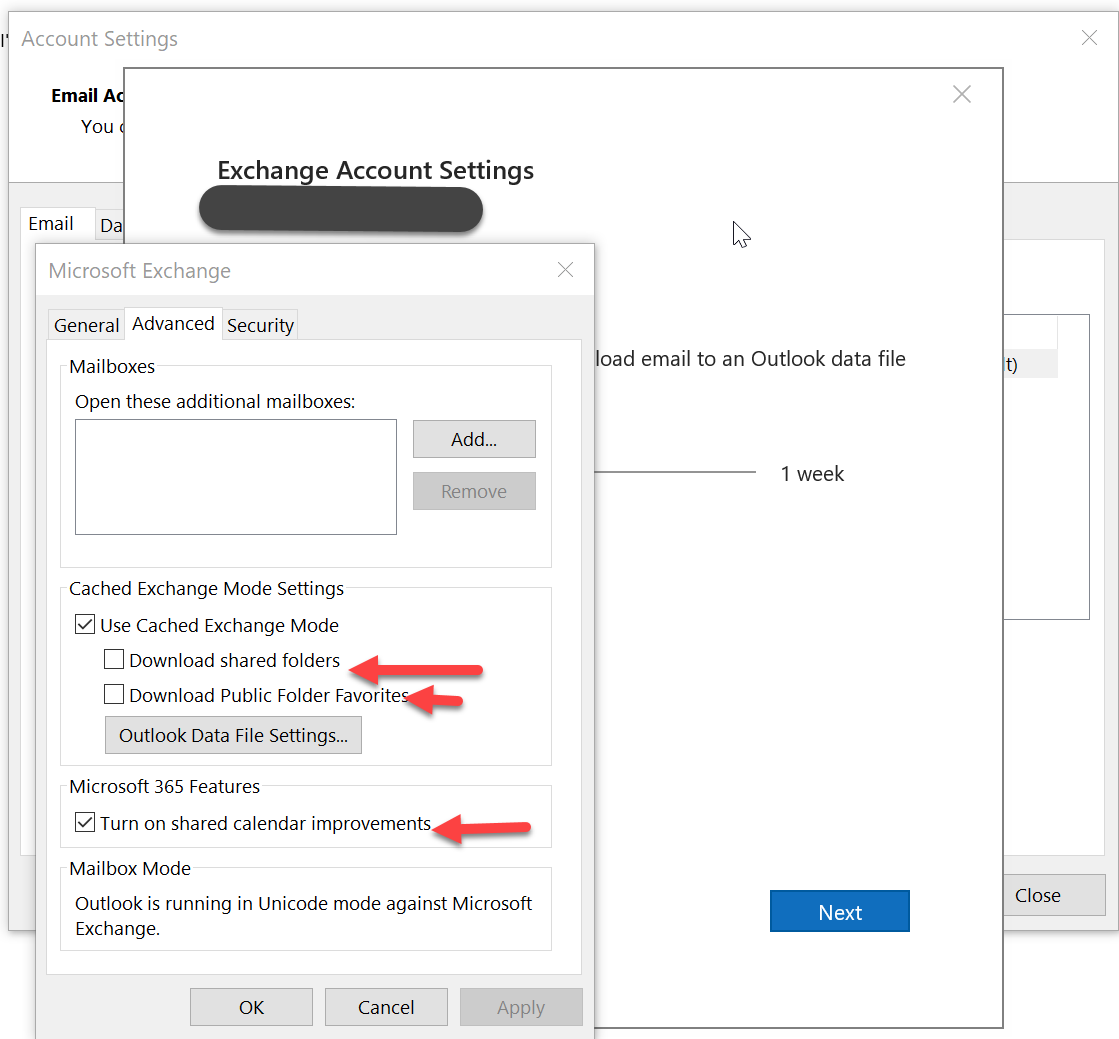
Once you are in this screen go ahead and hit the “More Settings” button then click on the advanced tab you should see a screen that looks like the following. Be sure the “Download shared folders is Unchecked” And if by chance “Download Public Folder Favorites” is check uncheck it. What this does is it makes it so you are not downloading any of the shared mailboxes and or shared folders you are connected to. This means outlook will only connect to them when Online and connected.
When outlook is connected and is no longer enumerating emails you should see this.
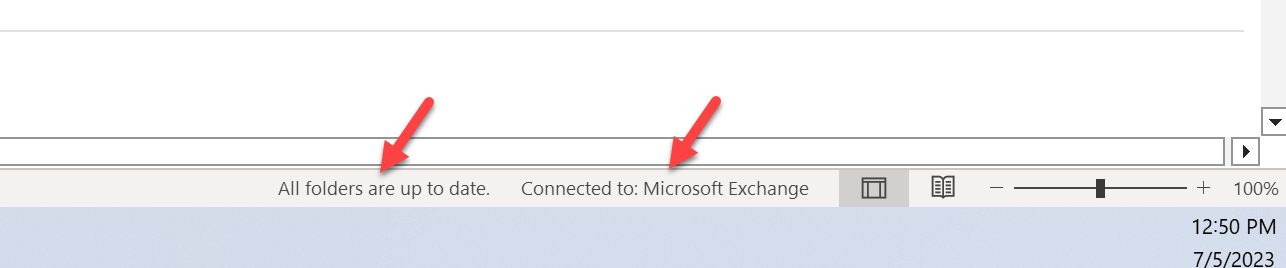
If it shows something like the below then it is still working to pull down data. I have seen users that outlook has been open for 24 hours and it is still updating this folder or a folder.

One last tidbit to help make this work even better. If you have to keep a lot of email cached and or you have bad internet connections. Here is a way to possibly help this out.
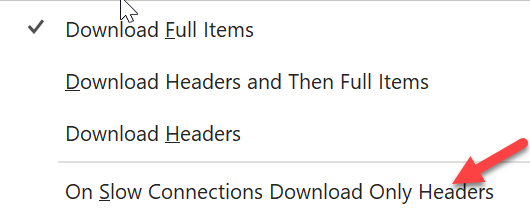
Go to send and receive. And look for download Preferences. The select the drop down arrow and check the “On Slow Connections Download Only Headers”


 Mitch's Blog