One of the challenges I continually see in the Information Technology industry, is the “This does not work” statement by engineers asked to implement new solutions.
A few years ago (may age my self a bit on this one) I architected a Lync Pilot for a company that included voice\Telephony services as part of the solution. The consultant that went on site to implement called me about 4 hours into his day to tell me. The solution would not work as a telephony solution. This engineer had been to Lync training and knew it was a solution that should work. However, he was having some issues with the sip trunks. And after several hours of trouble shooting his answer was it would not work. This was stated in front of the customer.
At this point I knew we had at least 4 pilots running with almost identical configurations in the field. After I presented the configurations and provided recommendations for improvements, the consultant was able to successfully implement the solution. The damage caused the customer to lose trust in the solution.
Role forward to a recent event around Microsoft High Volume Email (HVE) which is a solution that Microsoft has provided for High volume email inbound to your tenant as well as a temporary fix for Legacy authentication that will be turned off in sept. With HVE you can still use legacy authentication until 2028.
I provided the documentation to an engineer to set up HVE, and made sure his manager was aware of the solution. And what the planned use of it was. 2 weeks later when asking about the status of the project I was told it “Would not work” as we had to enable legacy auth for the entire environment. So, they had started testing Amazon SES. So, mail would flow from on prem to Amazone SES and then to Exchange online. VS On prem to Exchange online with HVE.
So, I collaborated with the engineer for about 4 hours and was able to get HVE fully working. With minimal effort.
But this made me wonder. How often does added complexity result from engineers struggling to make designs work? Or did the pilot fail because the engineer could not get it to work. This happens more often than most people think.
· Why do engineers not ask themselves “would Microsoft put out a solution that does not work” or any vendor for that matter?
· How does that make the engineer\Consultant look when someone else can get it configured?
· Does that mean the engineer\Consultant is bad at his job?
I hear Horror Stories around Products all the time. However I always wonder was it really the product? or is it the people implementing the solution?
What am I an authority on. Lots of things but most people would call me out for my continual push for Information technology Knowledge. I love to grow people and Help people learn new technologies.
Things like DNS, OSI Model, Conditional Access Policies, Exchange Online, Entra ID, Identity Management, Trouble shooting. And Much Much more
I have seen a lot of people complain about Teams performance. And Microsoft has announced they are pushing a new client. That is supposed to be significantly improved for performance. However, we have found that a simple change with in the client may help in some cases. If the users goes into settings and checks the box to disable GPU hardware Acceleration in some cases this may resolve the issue.
Your experience may vary depending on which version of client and what systems you are operating on. But it may be worth a try if you feel teams is causing you performance issues. We have found that sometimes general performance of your machine and other apps are affect even when you think teams is not in use. So if your machine is having performance issues it is worth giving this a shot.
So many people keep asking how we trouble shoot outlook when users are having issues. This is a bit complicated as there are so many different issues a user can have. However, I am going to try to explain some of the things I think about when trouble shooting outlook.
Outlook is very sensitive to networking problems. lost packets, latency and Jitter can cause all kinds of challenges for outlook. This often times presents as freezing, hangs, and or outlook is totally unusable. But remember freezing and connection issues are different. Freezing happens generally after the outlook Client connects I will write a more in depth article on freezing and hangs here shortly.
However, there are other things that can cause similar behavior or just poor performance in general. If you have read my previous post (https://wordpress.com/post/mitchroberson.blog/111) you may have some of the fixes already applied. That I recommended in that post. However, i wanted to try to explain things more. about how to actually trouble shoot outlook. So we will start with connection issues.
When i trouble shoot I kind of try to follow the OSI model. And I want to find tools that help me give information about how what ever thing I am trouble shooting works. So to troubleshoot outlook one of the most important questions to ask is how and what does it connect to.
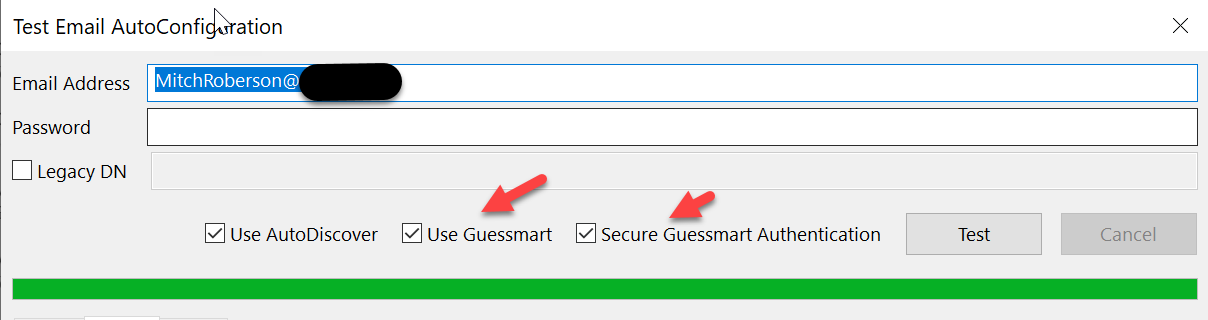
One of the best tools to start learning this is built into outlook itself. If you go to the system tray and right click on the outlook icon while holding down the control key. you will find 2 tools. “Test email AutoConfiguration” and Connection status
Connection Issues
I will start with Connection issues. To start with we need to understand how outlook finds what to connect to. if you use the Test Email AutoConfiguration tool shown above it is Real easy to find exactly what it trys’ to connect to. You can do this by simply making sure the email address is correct in the email address field. And you do not need to put a password in if it your account and you has SSO setup properly.
Outlook will take the SMTP domain from the email address that is the part after the @ sign. And apply it to several different urls to try to check. Note if you had Guesssmart and secure Guesssmart authentication boxes checked. You will see there is a feature for pop3 and Imap Autocofiguration. I usually skip these as generally outlook with Exchange or Outlook with M365 do not use those methods of autoconfiguration.
Once you click on test, click on the log tab you will start to see what all outlook checks. But here is the generally used checks it does to find configuration settings.
If you are on your network and outlook has access to the domain. it will attempt to query a service connection point (SCP) that has been added to your ad when you setup Exchange. And usually that will return a URL.
depending on version of outlook it may also query the following:
Once it query’s the above then it makes a connection and pulls down the configuration for outlook and what it should connect to. Most people tend to think it just makes a single connection and then it is done. However there are several things it connects to. And knowing these can help with understanding how teams gets information like address lists and calendar information as well.
If you go to the XML tab you can see what all the URL’s outlook is connecting to. If you look below you may start to see how this helps you trouble shoot.
MAPI: is what outlook connects to, to send and receive email. Notice it is not smtp if you are getting connection errors and the client is not receiving email then most likely this is where you need to be looking.
OWA: is outlook web access, Outlook does not use this much but is there so you can connect to test to ensure it is not an account issue. And shows up several places for the end user to use when they do not know how to get to the web version.
EWS: this is where outlook gets it’s out of office stuff from. So if users are complaining about OOF not working correctly EWS May be your culprit. Also think about teams. this is what teams connects to. In order for it to get calendar information.
OAB: Offline Address book. This is just what it sounds like. Outlook downloads a cached version of the OAB Once every 24 hours. So if this is not updating or when the user clicks the send and receive button and gets an error related to OAB then you may need to look at this more.
Trouble Shooting Connection issues.
Ping and NSlookup are your friends as well as the Outlook Test Autoconfiguration tools. I always start with the Test Autoconfiguration. That will tell me if it is getting the correct configuration information. This relies on On DNS to be setup correctly.
So If the test autoconfiguration fails I would start looking at PING and NSlookup. And since I know what outlook is looking for. based on the tests out of the “Test Autoconfiguration tool” I would start with seeing if those URLS resolve.
I would try to do a “Ping Autodiscover.smtpdomain.com” check to see if the name resolves to an IP. see if ping works. You can try a tracert to the above see what the results are. Maybe even look at PING -l and bump the packet to a fully loaded packet with -l 1400. Also try the ping -f to turn off fragementation.
Think about what could cause the client not to connect or not able to download the configuration file.
Things like DNS errors or Misconfiguration.
MTU issues Look up PMTUD when you have time.
Network issues.
I am sure there is a lot more I am missing but wanted to get this out to have people start looking at it. Remember this is about outlook connectivity. Not about Performance.
So I have received a lot of feedback on outlook performance issues. Many are relating it to a recent update. However, there is more to it then just the update. Over the past year we have changed the retention policy to 5 years for everyone. Awesome most people would say. I have been here long enough to remember when we did not have the 90 day retention policy in place. And the challenges many users had with performance while using outlook. You would think there was a fix someone could apply to solve this. But with the new 5 year retention policy some of the same problems are back. And the recent update has added to the challenge.
I will explain some of the challenges of using the outlook desktop app. But if you want to skip to the potential fixes scroll past the challenges and search for Fixes in this article. If you want the best performance switch to using the web version of outlook located here: https://outlook.office.com/owa.
Performance for outlook is very dependent on your hardware, hard drive, Memory, CPU, networking, secondary mailboxes, as well how much email you have and or receive in between each shutdown and opening of outlook. Outlook uses what is called cached mode. This means it is pulling down every message and storing it in a local cache on your laptop or pc. And there are limits to the size of cache. 50 GB by default but that can be expanded to 100 GB. So, if you have been offline for several days, you may have more messages to download when you first fire up in the morning. If your network connectivity is poor it will often hang outlook as it try’s to pull each message down. Each message has to be enumerated and then pulled down this is a bit time consuming. And if it has issues with this process, it often leaves the user waiting for a bit.
There are situations where outlook must re-enumerate every message it has downloaded. Situations where every message might change i.e. IT makes a change to a Sensitivity tag. And now each piece of email has to be re-enumerated related to that change. Or maybe an update to Office. That changes a formatting bug. And each piece of email has to change because of that formatting bug.
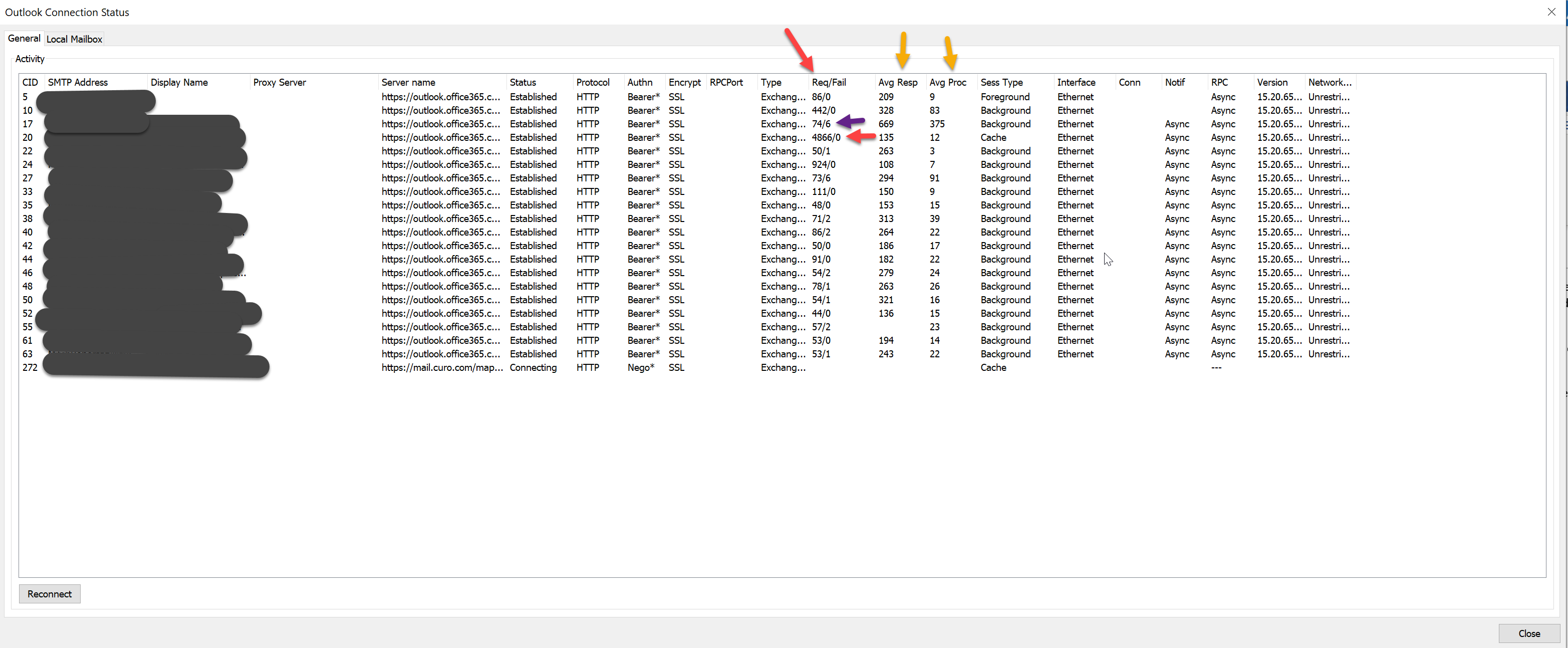
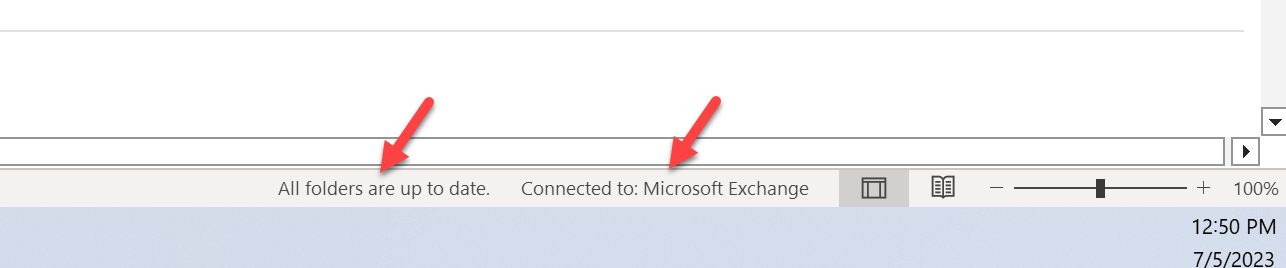
In the screen shot below you can see that my primary mailbox connection I have had 4866 Requests with 0 of them fail. But if you look at one of my connected mailboxes right above (the email abuse Mailbox), I have had 74 Requests with 6 of them failing. And with the default settings those 6 failures for a mailbox I am not even concerned about could cause my outlook to hang. So how do I keep a secondary mailbox from causing my outlook to hang. Also notice some of the stats under avg response time and avg processing time. That starts to tell us a lot about how well the network is running and how well Microsoft is processing the requests.
Fixes
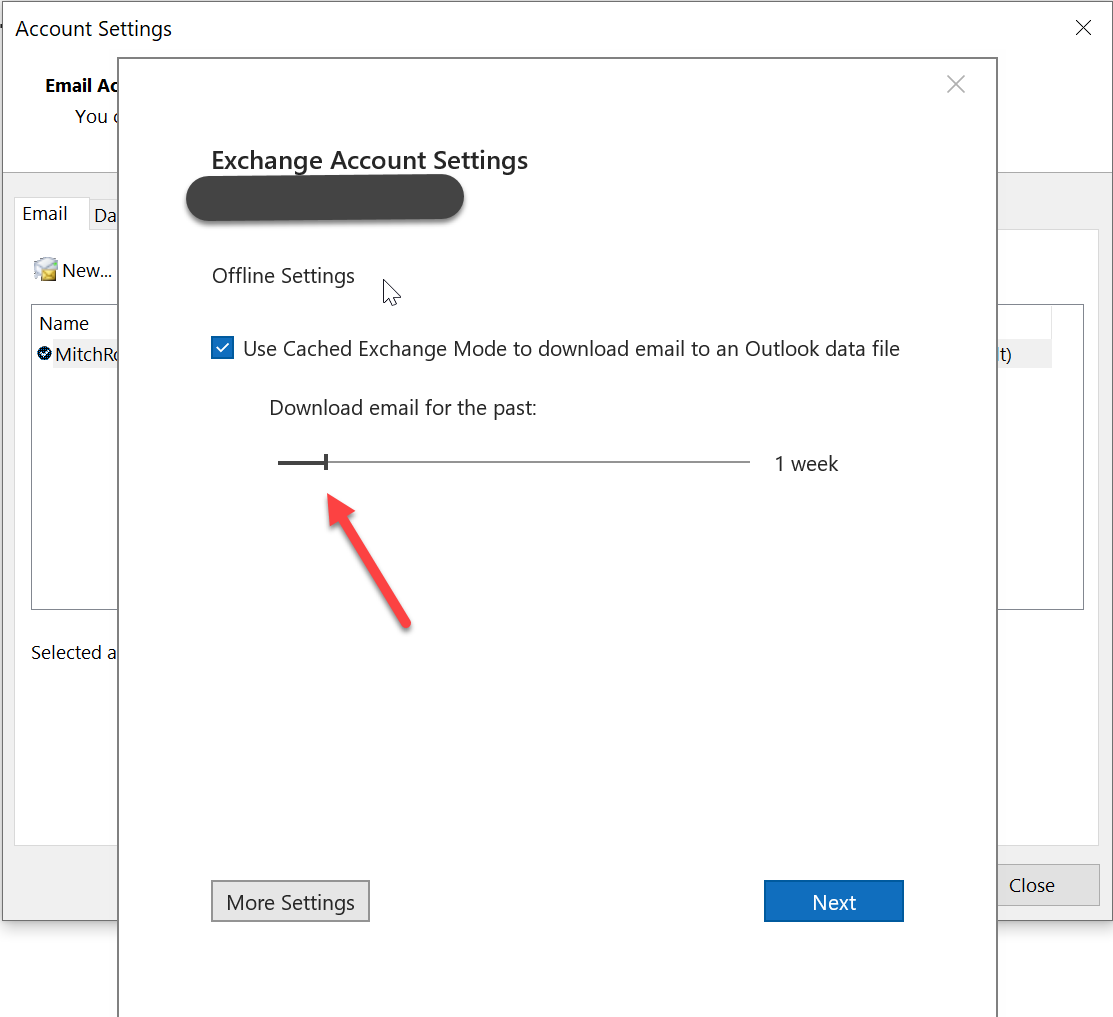
So how do I fix this. Or at least make it better. To start off there are several changes that a user may want to make to their outlook setup. If you are a user that is connected to other mailboxes. I would suggest you go to File\account settings then find your account and select change. Note if you have 2 accounts listed do this for both. Once there you will see a box that says offline settings. Be careful with this, as it will set your outlook client to download only email relevant to the last week or 3 months or 6 months. What ever you select. Understand it does not delete the email. And it is still searchable. But you have to be online to search for old email. So outlook has to show connected in the lower right hand corner for search to work for items still stored in the cloud. This is ONLY for what you want to see cached on your local machine. If you set this to 1 week and you decide to Move it back to 6 months or a year. Be aware it may take a while to pull it all back down and most likely you will hang again.
So in my case I have it set to 1 week. Because I get a lot of alert emails and such. This saves me in the re-enumeration events listed earlier. It also means my local cache stays small. And I very rarely see hangs they do still happen usually after a long weekend with my pc being left off. But there are other settings that can help as well so read on.
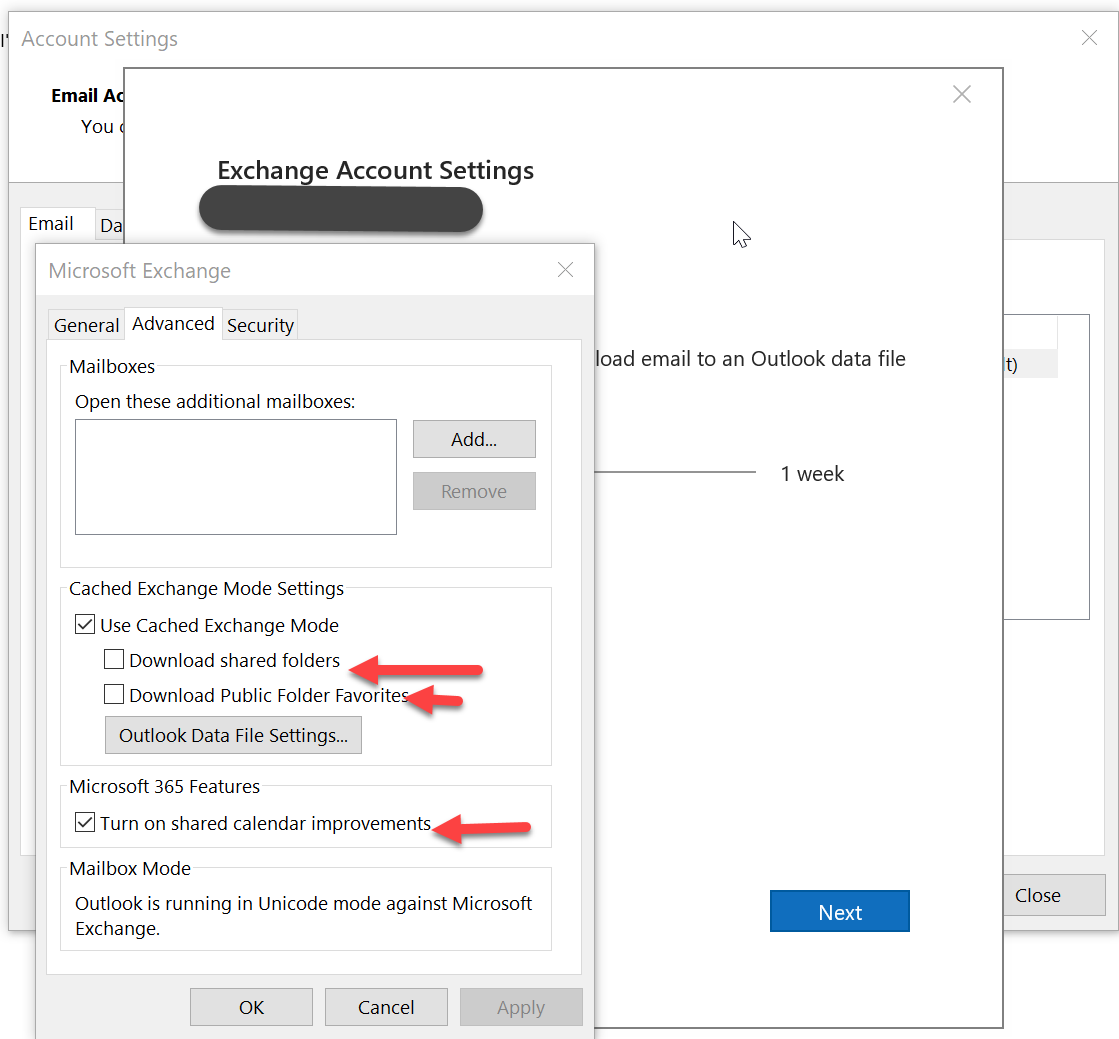
Once you are in this screen go ahead and hit the “More Settings” button then click on the advanced tab you should see a screen that looks like the following. Be sure the “Download shared folders is Unchecked” And if by chance “Download Public Folder Favorites” is check uncheck it. What this does is it makes it so you are not downloading any of the shared mailboxes and or shared folders you are connected to. This means outlook will only connect to them when Online and connected.
When outlook is connected and is no longer enumerating emails you should see this.
If it shows something like the below then it is still working to pull down data. I have seen users that outlook has been open for 24 hours and it is still updating this folder or a folder.
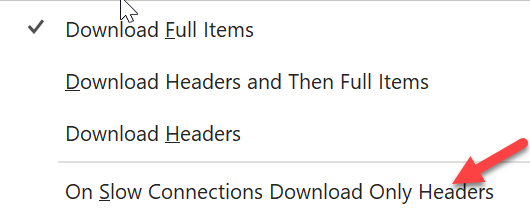
One last tidbit to help make this work even better. If you have to keep a lot of email cached and or you have bad internet connections. Here is a way to possibly help this out.
Go to send and receive. And look for download Preferences. The select the drop down arrow and check the “On Slow Connections Download Only Headers”
One of the key buzz words I hear a lot is root cause. Every company I have ever dealt with wants to find the root cause of a problem because ideally it is then easier to prevent or architect things so it would not happen again. But I often wonder how many times the root cause of a problem is often a symptom that is mistakenly taken for root cause. And I often wonder how companies and IT teams in general come to the root cause of problems when they have limited visibility.
To find true root cause you have to have visibility. And Finding the truth is hard to do without it. So often times root cause analysis is simply who had the best theory that most closely match’s the problem. With wire data it seems to me to be the closest thing to the truth I can find. If you see it on the wire then it most certainly happened. If you did not well that is another story.
So, based on this I want to walk through a scenario. That I have seen more times then I should have. And many times the root cause may have been attributed to the wrong thing.
One afternoon a company suffers an outage. This outage was basically caused by network device with HA configured suddenly failing over to a different datacenter. But what caused the network device to fail or lose communication with it’s HA pair? Naturally the investigation begins and we start digging into as many tools to see what we can find. As we are digging in one of the analysts walks in saying he found the problem. Take a look at the first graph.
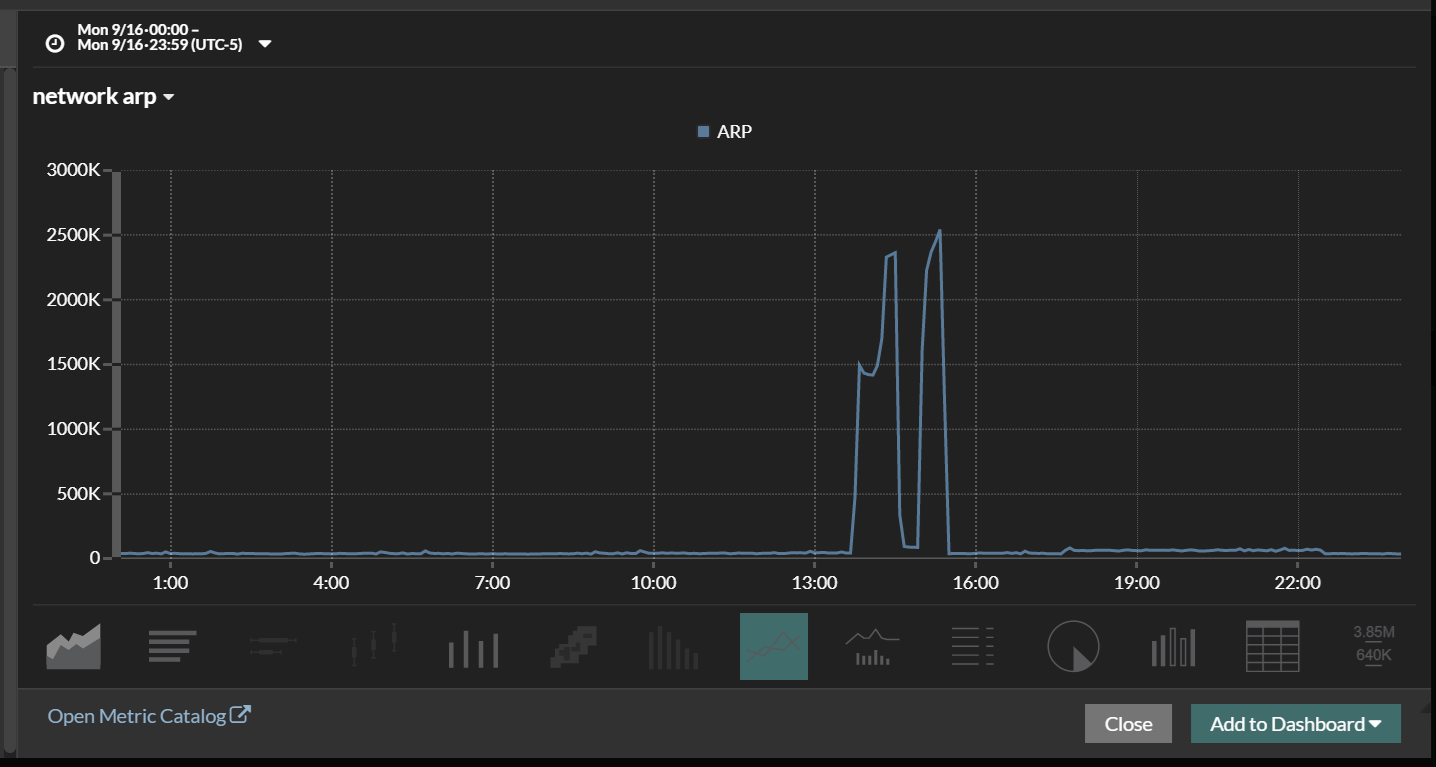
Below is a graph of ARP and low and behold there is your problem!!!! The application team is saying that an arp storm caused the outage and we have bad hardware. Arp storms are often caused by bad hardware. Or so that is what is often taught. Or maybe it is a common hypothesis when you do not have visibility into the environment. But what really caused the ARP storm???? And how would any company catch this that does not have visibility in to their wire data??? I have never found an ARP Log, there may be one but I do not know about it. So, what caused the ARP and how do we find the offender.
Cool thing is Revealx has the ability to drill down. We can look at the Client sending out the most arp requests. In this case it was a router that was sending all the ARP requests so why would this happen? Why would a router need to ARP so much was it failing? Is there bad code.
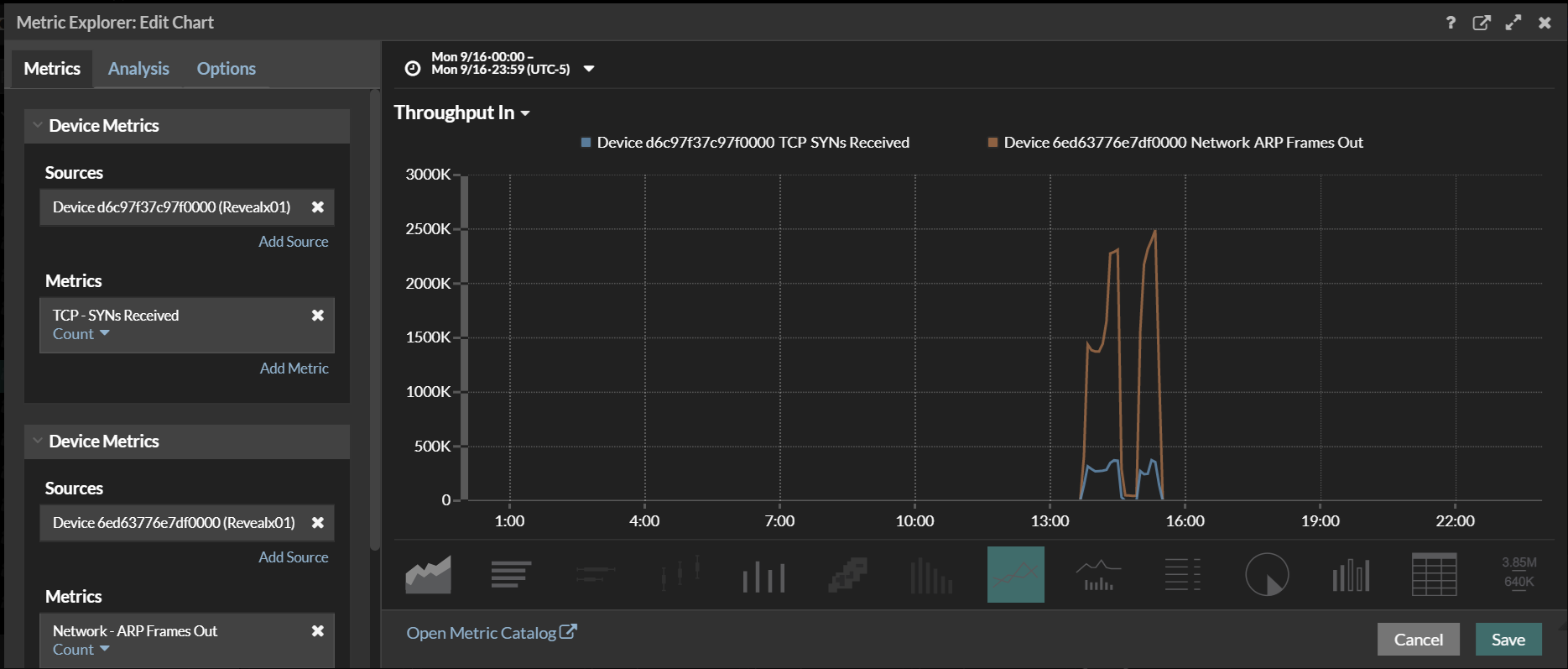
Since this was a router. We started looking at all the interfaces. Not the Layer 3 interfaces. But the layer 2 interfaces. What we found was that on one side we could see a Syn Scan taking place. The Scan was directed towards the 192.168.1.0\24 network. And was scanning all ports. The ARP storm was happening on the 192.168.1.0\24. As you can see from the second screen shot we could see the syn scan taking place.
In the final screen shot we overlay the arp and the Syn Scan. You see the Syn Scan start and the ARP Storm start and stop at nearly the same time. So now we have a root cause. Or do we? Why would a Syn Scan Cause a device to lose communication?? That should be the real question. But that is for a different time as we are not here to discuss different vendor challenges.
I recently ordered a small model engine from China. When the package arrived as I opened it up and pulled all the bubble wrap off. A USB stick was mixed in with the Bubble wrap.
Hmmm I had not ordered the USB stick. So naturally I am concerned about this. I have not plugged it in anywhere. I do plan on setting up a standalone machine I can wipe when done with and then scan this USB device and see what it has on it if anything.
But sure makes me wonder how many people get packages like this that came from china with a “Free” USB Stick. How many people USE it with out thinking?
In a recent presentation I saw, the speaker was talking about wire data and how it is becoming irrelevant in the new Software Defined Network (SDN) – and a couple of other acronyms that I can’t remember. He started talking about how you can now find malware even when it is encrypted with JA3 Hash and several other methods, which sounded cool. I was still not sure about all of this and wanted to read more about it. As with most cool new things, I assumed there were some caveats, and of course that the bad guys would read about this and figure out ways to circumvent it.
But what he said next made me really start thinking… His exact statement was, “decrypting data makes me feel dirty.” This struck me as odd. For some reason, I started thinking about marketing and how companies come up with terms or put a spin on things to win business by making buyers feel uncomfortable about doing certain things.
I once heard a story about Ford (not bashing them, I own one). Way back in the early days, they caught some bad press. Remember, there were no cars back then and people walked freely on the roads. When Ford began selling cars, pedestrians started getting hit. Then, the term “jaywalking” was coined to discourage people from walking in the streets and after a while, it caught on and fewer and fewer people were walking on the streets. Eventually, jaywalking was legally banned.
Back to the “decrypting data makes me feel dirty” statement – this starts to sound like a marketing ploy to me, but let’s look at it further. Are there other issues with decrypting wire data? Why would you want to and why would you not want to? If you’re decrypting the entire packet, I could see there being some concerns around Personally Identifiable Information (PII), PCI, and even companies’ proprietary property being exposed. But what if you could decrypt it, analyze it and pull the important stuff out like error codes, post and get timings, success and failed transaction information, plus so much more? And then have the decoded packet tossed, so that no PII is ever kept?
Here is a great example: You have a website that users log into. In most cases, developers do not use the normal 401 auth failure since most users would have no idea what that means. Most websites actually return a 200 with some syntax on the page (I.e. “Failed Login” or “Username and Password are Incorrect. Please try again.”). Well, if that was encrypted, I would never see that on the wire – and in the web logs, all you would see is 200, unless your developers wrote a special event for it (that rarely happens). Now, if I can decrypt that packet and watch for every page that has “Failed Login” or “Username and Password are Incorrect”, I can count the number of failed logins. This cannot be done with JA3, and it puts no load on your servers. Being able to inspect payload is crucial to being able to find what is happening in your environment. The idea of NOT decrypting data and thinking you will still have the same visibility to everything you need is misleading. With things changing daily, having the flexibility to decrypt wire data is key to successfully protecting your network, as well as providing performance information. So, if decrypting wire data is dirty, I guess I’ll have to go home and shower.
So WPAD requests happen from most systems all the time. But most of us do not realize it. And a lot of people do not seem to care. However if you do a search for WPAD attack you will find multiple articles that discuss varying types of attacks. If after reading those and you are not concerned about your users and their data. As well as the companies data. Then maybe this post is not for you.
Below is a few good articles that talk about some of the exploits and how to find it in some cases.
I am not going to write an article about how the attack works as there are plenty of these articles out there. Fact is WPAD, ISATAP, and LLMNR have been used for Man in the middle type attacks. And it is a common well known attack vector. So you should be concerned. Personally I have tried to get rid of all 3 on my personal machines. And have worked with several companies to decrease there presence on their networks.
For larger environments, I am more concerned with how to fix the problem. And how to find stragglers. As well as how to spot the attack if I can’t stop wpad requests. There are lots of articles that talk about removing WPAD or stopping WPAD. Many of them talk about using a host file. And we tried that and it does work but keeping up with the host file is a management challenge. We have also found that it does not stop all the methods that proxy auto configuration uses. You have to realize that a request for the PAC file or the script to setup the proxy can be done by DNS, DHCP or with in an http request. This means that just doing a host file does not stop all the methods of attack.
For me I have found that disabling the IPhlpsvc, and the winhttp-proxy service has stopped this the best. But how do I verify that it actually stopped. And that stragglers are not out there. This is where DNS monitoring via Logs, or Network traffic analysis (NTA) with a tool like Extrahop becomes invaluable. The problem with DNS logs is that without some sort of log aggregator it is hard to keep up with. And even with an aggregator it is possible during high traffic times the logs might not be ingested fast enough. So some data may be lost. With NTA this is less likely. So I tend to want to use NTA over a log aggregator\parser.
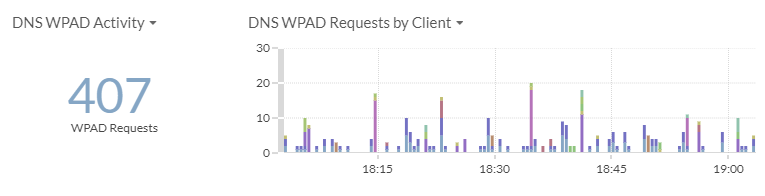
Here you can see there was 407 requests for wpad. With Extrahop it is possible to drill down to see what clients are making the requests and then work to fix them.
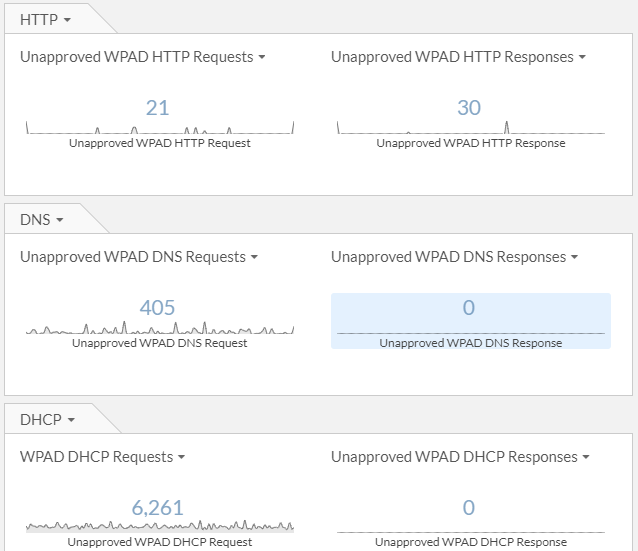
What is even more concerning is responses to WPAD requests. If you can’t stop them, or it takes time to stop them due to change control requirements. At least I want to know what is responding to those requests. As these may be an indication of a man in the middle attack especially if you do not use WPAD. So below is a chart from Extrahop that allows me to see how many requests and how many responses Extrahop is seeing in my environment.
Hope this helps someone find and remove WPAD from their environment.
DNS is a set it and forget it application. And many administrators do not realize the impact DNS has in their environment. Most environments I have been in have never seemed to even care about how it was architected or what is really happening with their DNS. And yet DNS is often the cause of many outages, and many problems seen and unseen. So here is a list of all the things I think are important to watch for:
Quantity of DNS queries
Types of Queries
DNS Errors
DNS time outs
DNS Names being queried
TTL in the Response
Multiple answers in the DNS response
DNS Geo load balancing,
So why should I even care about any of the above. Well let me go through each of them and list some possible problems with them.
Quantity of DNS Queries
Overloading a DNS server
Can cause time outs
Hiding Traffic through DNS Tunneling as it leaves your environment
Slowing down applications because TTL is to low and 1000’s of query’s are being made for an ip that remains static. Or Times out because of the overwhelming amount of queries caused by low TTL.
Types of Queries
DNS Tunneling
Misconfigured DNS
Easy way to see what and how some applications work (i.e. auto configuration stuff)
DNS Errors
Errors are normal. NXDOMAIN is normal. But why would I have so many and what is by baseline
Look for important names
May be because someone is using Host name, And not FQDN. Could speed the process up by milliseconds.
Do I have multiple DNS suffix search orders?
Does my dns query have to go through 5 DNS suffix’s to get a final answer?
Is this good or bad. (in my opinion it is bad since it slows things down just a ms or 2)
DNS Time outs
When a client has to wait for DNS Time outs it means the application is waiting.
Usually this means that DNS will try again by hitting the secondary DNS server
Long enough times outs can me the application times out with an arbitrary network error.
DNS Names being queried.
Odd names can be an indicator of a virus.
Are your applications using FQDN or host name.
Indicator of Bitcoin mining
There is a lot more. But always a good idea to see what is being queried and Ask your self why.
TTL in the response
This is important from the aspect that many people thing DNS Geo load balancing is awesome.
However when you have 10000 clients that query that service often and their time to live is 5 min or even 0. It can quickly overload a DNS server.
When companies setup DNS Geo Load balancing and set the record to 5 min or 0 it is possible to have an application be talking to 2 totally different ip’s under some circumstances.
So those weird times your app talks to the vendor or customer just fine, but then drops off for a bit. Then comes back. Hmmm check DNS see if they were hitting a different IP address during that time frame.
I see this often. When you do an NSLOOKUP for x.domain.com and it returns ip xxx.xxx.xxx.xxx and you test and all is good. But 10 min ago the app team says it was not. Then they say oh it working now what did you do? So you go about your business they call back 5 days later and say do that thing again we are broke. And you start the whole process over. But what you do not realize is that for 10 min x.domain.com was going to yyyy.yyyy.yyyy.yyyy
Seeing this also helps you on misconfigs.
On static IP’s you can change it to be longer if you see the same request often.
Helps you see when changes are made.
Multiple IP’s in the DNS Response
I have seen responses with as many as 7-10 IP’s in the same response with different TTL’s
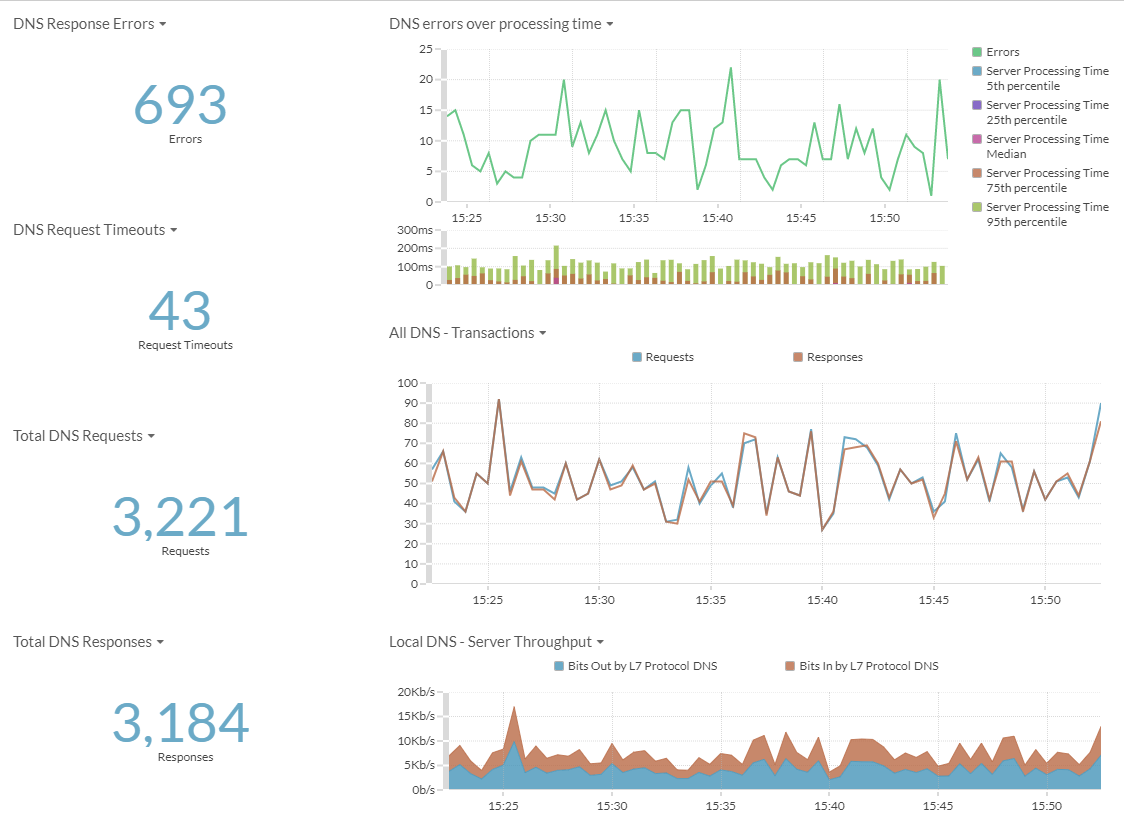
This is just a list of some of the reasons I would want to monitor my DNS. I have found multiple times where DNS was the cause of performance issues. As well as the cause of intermittent errors. But it is very hard to tell when this is happening. DNS logging does not always help since it can be overwhelming trying to search through all the logs. However with Extrahop. I have been able visualize this type of data quickly. And easily.
Below is a sampling of the graphs and metrics in a basic dashboard from extrahop.





 Mitch's Blog