My Journey into Network Visibility and how much data is available to us. And how that data can help solve I.T. challenges.

I have not posted in a while. Well more like years. I think my last post was in 2012. Since then a lot has changed. But most of all I wanted to be able to pass on knowledge. I have learned so much in this industry and have a lot more to learn.

Recently I started working with a product called Extrahop. And all I can say is wow. It has opened my eyes to a lot of things. Truly an amazing product.

One of my main focuses has been visibility for the past couple of years. I would often hear of people talking about several things. And of course everyone has their opinion and of course their own product that will help with each of these.

  • Moving from reactive to proactive environment.
  • High availability.
  • Security
  • And performance tuning
  • Root cause Analysis

All of these topics always bring visibility to mind at least for me. In order for you to truly work each one of the above you have to have visibility. But visibility to what becomes the question. And there are so many products. Available that supposedly will help with each.

Extrahop has truly helped me understand each of the above area’s more then I have ever thought possible. And believe me I have tried several different products. All have their pro’s and Con’s but after an extended amount of testing we have settled on useing Extrahop to help us solve some of the problems and challenges we have.

Over the next couple of weeks and months I will start posting about what can be done with Extrahop as well as the challenges that come up in using it.

But this is not just about Extrahop. It is more about my Journey in finding facts. How does x really work on the wire? What really happens on your network with all the applications. How can i trouble shoot better? How can we decrease mean time to resolution? How can we improve our enviornment?

I hope others can enjoy this journey as I walk through it. I love to pass on what I learn as I think it is valuable to pass on knowledge.

Thanks for reading.

Posted in Uncategorized | Leave a comment

It is nice you want to know me. But why do you keep asking? (Part 2)

So I started this some time ago and wanted to continue to try to do the next part now that my lab is back up. In the last post we talked about auto discover and how it can affect authentication. So now I want to talk about other URLS that you may need to check. Let’s start with a list of all the URL’s you can try from internet explorer. I specifically call out using i.e. to test the URLS because it is what is in the middle of the stack whenever you make an HTTP or HTTPS call to a website from an application. i.e. will be in the stream and settings from i.e. can affect the web call. I will not cover the URL’s for auto discover since it was already covered.

Let’s start with the URLS:

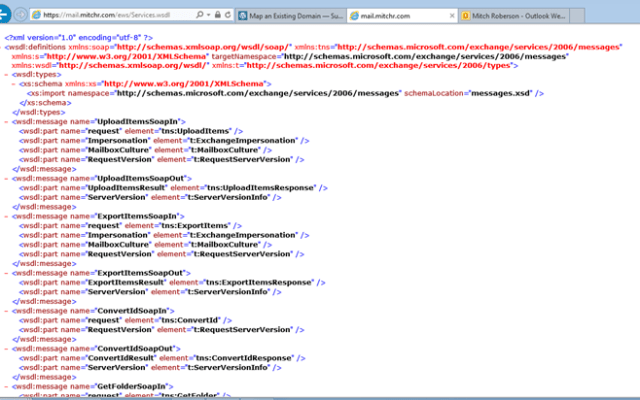
https://mail.domain.com/ews/exchange.asmx

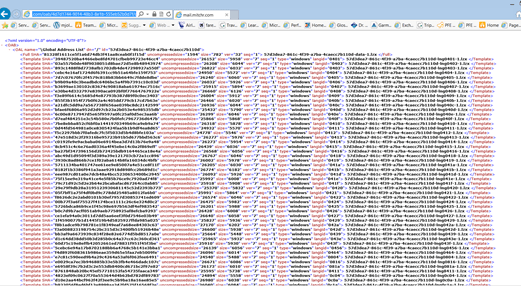
https://mail.domain.com/oab/oabguid/oab.xml


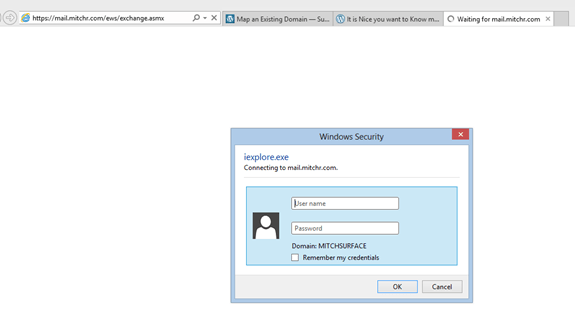
Remember receiving a prompt is NOT expected when using a Domain Joined Computer when going to these sites by I.E.


This is what you should see if you go to https://host.domain.com/ews/exchange.asmx now remember if you are on a domain joined machine it should not prompt like above. On a non-domain joined machine it will prompt. It is important to understand that you should not receive and password prompt or a certificate error. It should go straight to a page that looks like the below.

For the OAB if you go to https://host.domain.com/oab/OABGuid/OAB.XML Below is what you should see.


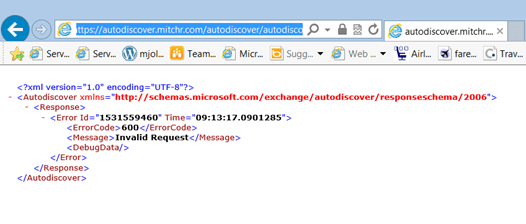
And since I did not show the Autodiscover page in the last post I will show it here. If you go to https://autodiscover.domain.com/autodiscover/autodiscover.xml this is what it should look like.


If you are receiving a password prompt on any of these on a domain joined computer you need to look at your I.E Settings if you are going to a URL that is not the same as your domain name. I.e Domain name is Domain.local and the URL you are using is Domain.com then i.e. MAY be blocking the authentication pass through. Check your security settings in IE to make sure that the URL is in the intranet zones.

Posted in Uncategorized | 2 Comments

My First work week with a surface

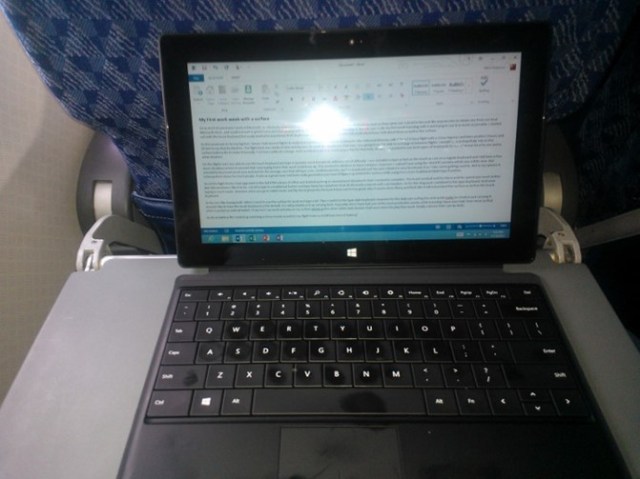
So as most of you know I work at Microsoft. So obviously I was extremely excited about the surface. And wanted one as soon as they came out. I stood in line just like anyone else to obtain one from our local Microsoft store. And could not wait to get it home and start playing with it. I have now had if for 2 weeks roughly but this was really my first week traveling with it and trying to use it as much as possible. I started out with the touch keyboard but really wanted to experience both keyboards so I could tell my customers the truth about how I felt about them as well as the surface.

So this week was to be my big test. I knew I had several flights to really test out the surface and the keyboards. My outbound itinerary called for a 1 ½ hour flight with a 1 hour layover and then another 3 hours and 55 min to my final destination. The flight back was similar in time and layover. So what this meant was is that I was not going to be able to recharge in between flights. I would have to hopefully rely on the surface battery life to make it basically 7-10 hours without a charge. And I wanted to use it as much as possible for that time. As well as I wanted to use both types of keyboards to see what was best for me and in what situation.

On the flights out I was able to use the touch keyboard and type 3 separate word documents without a lot of difficulty. I was not able to type as fast on the touch as I am on a regular keyboard and I did have a few more situations where it seemed that I was typing faster than word could keep up. This seemed to contribute to more mistakes. However I realized I was using the Word RT preview which was a little slow. But overall the key board work very well and for the average user that will type some small documents, reply to email and surf the web I think it is very functional. It will take some getting used to. But in my opinion it is the perfect choice for most people. It acts as a great cover and feels really good when you have it flipped up behind the Surface while using it in a more traditional tablet type function.

So on the flight home I had upgraded to the full RTM release of Office and started working on several word documents that I needed to complete. The touch worked well for them and the speed was much better. But still not where I like it to be. I tend to type in a traditional fashion and type fairly fast anywhere from 65-85 words a minute with out mistakes. So for this blog post I switched to the type keyboard. Typing is much easier. However when you go to tablet mode and flip the keyboard to the back it does not feel as good. Also it seems more flimsy and feels like it will not protect the surface as well as the touch keyboard.

So for me I like having both. When I need to use the surface for work and type a lot. Then I switch to the type style keyboard. However for the daily use surfing the web quick replies to email or just carrying it around I like to have the touch keyboard as the default. So I will probably end up carrying both. Especially since I have had one of the most productive weeks while traveling I have ever had. Even more so that when I carried an android tablet. I truly feel I can work and play on my surface where as the other tablet style devices I had were more for play than work. Finally a device that I can do both.

As far as battery life I ended up watching a 2 hour movie as well on my flight home and still have tons of battery I never really had to be concerned about battery life.

Posted in Uncategorized | Leave a comment

Authentication Prompts in Exchange and Lync

I recently started a series of Posts titled “It is nice you want to know me, But why do you keep asking” the idea was to give you the administrator the tools to trouble shoot authentication prompts. However I have received a lot of feed back on this topic and I wanted to make sure that everyone knows that Authentication Prompts are not always possible to eliminate. Often times other things come into play that may prevent the elimination of prompts all together.

There are many variables that come into play. Ideally in day to day use the user should not see an authentication prompt. However in failover or reboot situations where the client may need to reconnect to another server it may be possible that an authentication prompt is seen. Over the next couple of weeks I will post more on potential causes for prompts.

So the expectation is that you should NOT see an authentication prompt in Day to Day use (there are exceptions here as well). But during failover of your CAS’s or Reboots that you may see authentication prompts depending on a lot of factors. Ideally you will want to minimize this as much as possible and there are ways to do  so. the number 1 method is implement Kerberos and NTLM for outlook anywhere.

I will continue with my other posts to complete the series shortly.

Posted in Exchange, Lync | Tagged , | Leave a comment

It is Nice you want to Know me. But why do you keep asking (a discussion on authentication prompts in Exchange and Lync) Part 1

Account Blog

So last week at MEC I held 2 sessions on Authentication prompts. I was actually amazed that the room was a full as it was. And most people indicated they have had some sort of problems with prompts. So I decided I needed to follow-up with a blog post about the possibilities of fixing this and how to trouble shoot the problems. Let me start by saying there are 2 key elements to this that must be in place before trouble shooting any of the prompt issues. You must have Kerberos implemented fully for exchange. Do not assume that it is make sure it is. Kerberos does not work in a Load balanced Exchange environment without specific configurations. Ross Smith has a great article explaining why this is important. It is located here http://blogs.technet.com/b/exchange/archive/2011/04/15/recommendation-enabling-kerberos-authentication-for-mapi-clients.aspx

Second piece is you must have NTLM setup for your outlook anywhere deployment. If you have not set this up then all bets are off. Understand the only way to setup NTLM for outlook anywhere is to used Kerberos Constrained Delegation (KCD) which means your TMG has to be a member of the Domain. If you have not configured these 2 then there is no guarantee (actually there are never any guarantee’s because all environments are different) that we can setup an environment that will not have some prompts. But I will try to show you the area’s to check to see if you have everything else setup in a way that will limit the number of prompts. So all I can really say is that we can decrease the number you are having.

So lets look at what can cause and authentication prompt and when it might occur. It is important to find out when it happens because that generally will give you some indication of the possible problems. I will also suggest you become very familiar with the following tools.

· Connection status

· Test Email autoconfiguration

· NSLOOKUP

· www.digicert.com/help

· http://testexchangeconnectivity.com

· Web browser

Back to what can cause an authentication prompt.

  • RPC Connections
  • IIS
    • Autodiscover
    • EWS
    • Active sync
    • OAB
    • Outlook Anywhere
    • ECP
    • OWA
  • Puplic folders
  • Improperly configured certificates

I question putting in ECP and OWA because you will only receive a prompt from them when you specifically go to the URL and the client will not use OWA or ECP but yes they can cause a prompt. So we have to start with Autodiscover since that is the first thing outlook or Lync does when it starts. At least for the most part.

Autodiscover is handled by the following methods

Service connection Point (SCP) this is only for Domain Joined Computers and they have to have access to a Domain controller for this to work. To find out what your SCP points are set to simply open Exchange Management Shell and type get-clientaccessserver |fl Name,*uri*,*scope* as you can see below. All of the ones in this test environment are not uniform. And they all have the server name listed. So in this environment if I follow best practices and do not put the Server name in the cert, I will receive a certificate prompt. Best practice would be for me to change all the AutodiscoverServiceInternalURi to be the same url https://email.contoso.com/autodiscover/autodiscover.xml. NOTE: this is not my Client Access Array name.

[PS] C:\Windows\system32>Get-ClientAccessServer |fl Name,*uri*,*scope*

Name : EXCH200701

AutoDiscoverServiceInternalUri : https://exch200701.contoso.com/Autodiscover/Autodiscover.xml

AutoDiscoverSiteScope : {Default-First-Site-Name}

Name : EXCH200702

AutoDiscoverServiceInternalUri : https://exch200702.contoso.com/Autodiscover/Autodiscover.xml

AutoDiscoverSiteScope : {Default-First-Site-Name}

Name : EXCH10M01

AutoDiscoverServiceInternalUri : https://exch10m01.contoso.com/Autodiscover/Autodiscover.xml

AutoDiscoverSiteScope : {KC}

Name : EXCH2010M02

AutoDiscoverServiceInternalUri : https://exch2010m02.contoso.com/Autodiscover/Autodiscover.xml

AutoDiscoverSiteScope : {KC}

Name : EXCH2010M03

AutoDiscoverServiceInternalUri : https://exch2010m03.contoso.com/Autodiscover/Autodiscover.xml

AutoDiscoverSiteScope : {Florida}

NON Domain Joined computers or external connections

If the client can’t reach the SCP record on the DC then the client will look for the following in the following order:

· Local xml

· Https://smtpdomain.com/autodiscover/autodiscover.xml

· https://autodiscover.smtpdomain.com/autodiscover.autodiscover.xml

· HTTP Redirect method

· SRV Record Query

Why does the order matter to me? Well that is a good question. If by chance I have a company that has a web site and they have configured that web site to use a certificate so it now accepts HTTPS requests my client will hit there first. If by chance the certificate does not have smtpdomain.com in the SAN list then my outlook client will pop a cert error. But my Lync client will pop an Authentication prompt. So in every environment I always test to see what https://smtpdomainname.com/autodiscover/autodiscover.xml actually brings up. If it is not a 404 page not found then I can garuntee your client will have some issues it may be intermittent because autod information is cached. However I am betting you would have a problem creating a profile while off the network or not joined to the domain if that URL is responding to requests. Remember if you are on a domain joined machine it should not prompt and it should not show a certificate error.

Many companies have started this advertising thing where when you do not find a page for the company web site they apologize to you and show some cool picture and then help redirect you back to the real home page. This can cause all kinds of problems and it should not respond for autodiscover/autodiscover.xml. This affects the Lync client often. More often than most realize.

I will start on the next blog post shortly there is just too much information to put in a single post. More to come over the next 2 weeks. My intent is to provide more information about these specific challenges. I plan on putting in more information about Load balancing as well.

Posted in Exchange, Lync | Tagged , , , | 2 Comments

Configure MRS to Efficiently and Consistently Move Mailbox’s

One questions I receive often is around Mailbox Replication in Exchange 2010. And at first I didn’t think I really needed to write this post. Why you might ask? Well like many of you I initially thought well you only will use it once in a while. Say when you are actually migrating your users from an older version of Exchange to a newer.

But as I thought about this and as more questions came in. I found that this is an important topic. Not only because many people are still in the process of migrating to Exchange 2010. But many organizations may spread the load of users between databases once in a while. and or move users between databases for one reason or another.

And since you can move a user with out much impact to them. As well as the fact that offline defrag is not recommended and moving user to a new database is the best method for this. I am seeing more and more people moving users around between servers then ever before. This means MRS plays a very heavy role in moving those users.

There are several great articles that explain MRS and what it is doing. http://technet.microsoft.com/en-us/library/dd298174.aspx. As well as some that explain how to throttle MRS http://technet.microsoft.com/en-us/library/ff963524.aspx. However none of them have really taken the time to explain how making adjustments affects the MRS and how to spread the load between CAS servers to make this more efficient.

There are several key settings that I usually play with when trying to optimize MRS configurations.

They are:

MaxActiveMovesPerSourceMDB = “5”
MaxActiveMovesPerTargetMDB = “2”
MaxActiveMovesPerSourceServer = “50”
MaxActiveMovesPerTargetServer = “5”
MaxTotalMovesPerMRS = “100”

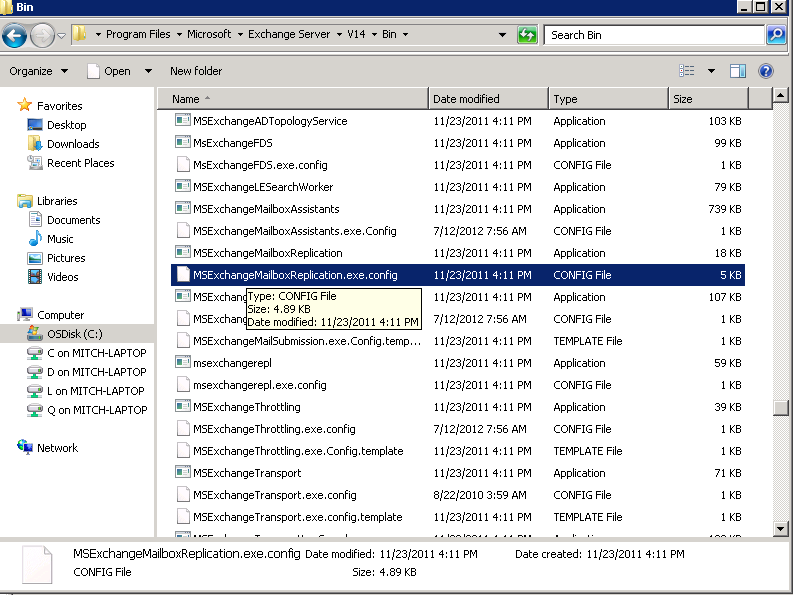
The file is located under Program files\Microsoft\Exchange Server\V14\Bin\msexchangeMailboxReplication.exe.config
image

You can open the file with notepad the settings you need to change are under MRSConfiguration. Many people often mistakenly change the settings under “Mailbox Replication Service configuration” The one in Yellow is the one you do not want to change.

<!– Mailbox Replication Service configuration

   Setting Name – Default, MinValue, MaxValue
   
    MaxRetries – 60, 0, 1000
    MaxCleanupRetries – 5, 0, 100
    RetryDelay – 00:00:30, 00:00:10, 00:30:00
    MaxMoveHistoryLength – 2, 0, 100
    MaxActiveMovesPerSourceMDB – 5, 0, 100
    MaxActiveMovesPerTargetMDB – 2, 0, 100
    MaxActiveMovesPerSourceServer – 50, 0, 1000
    MaxActiveMovesPerTargetServer – 5, 0, 1000
    MaxTotalMovesPerMRS – 100, 0, 1024
    FullScanMoveJobsPollingPeriod – 00:10:00, 00:03:00, 1.00:00:00
    MinimumTimeBeforePickingJobsFromSameDatabase – 00:00:04, 00:00:00, 01:00:00
    ServerCountsNotOlderThan – 00:10:00, 00:00:00, 01:00:00
    MRSAbandonedMoveJobDetectionTime – 01:00:00, 01:00:00, 12:00:00
    BackoffIntervalForProxyConnectionLimitReached – 00:30:00, 00:00:30, 1.00:00:00
    DataGuaranteeCheckPeriod – 00:00:10, 00:00:01, 02:00:00
    DataGuaranteeTimeout = 00:30:00, 00:00:00, 12:00:00
    DataGuaranteeLogRollDelay = 00:01:00, 00:00:00, 12:00:00
    EnableDataGuaranteeCheck = false, false, true
    DisableMrsProxyCompression = false, false, true
    DisableMrsProxyBuffering = false, false, true
    MinBatchSize = 100, 2, 1000
    MinBatchSizeKB = 256, 16, 16384
  –>
 
  <MRSConfiguration
    MaxRetries = “60”
    MaxCleanupRetries = “5”
    MaxStallRetryPeriod = “00:15:00”
    RetryDelay = “00:00:30”
    MaxMoveHistoryLength = “2”
    MaxActiveMovesPerSourceMDB = “5”
    MaxActiveMovesPerTargetMDB = “2”
    MaxActiveMovesPerSourceServer = “50”
    MaxActiveMovesPerTargetServer = “5”
    MaxTotalMovesPerMRS = “100”
    FullScanMoveJobsPollingPeriod = “00:10:00”
    MinimumTimeBeforePickingJobsFromSameDatabase = “00:00:04”
    ServerCountsNotOlderThan = “00:10:00”
    MRSAbandonedMoveJobDetectionTime = “01:00:00”
    BackoffIntervalForProxyConnectionLimitReached = “00:30:00”
    DataGuaranteeCheckPeriod = “00:00:10”
    DataGuaranteeTimeout = “00:30:00”
    DataGuaranteeLogRollDelay = “00:01:00”
    EnableDataGuaranteeCheck = “true”
    DisableMrsProxyCompression = “false”
    DisableMrsProxyBuffering = “false”
    MinBatchSize = “100”
    MinBatchSizeKB = “256” />
</configuration>

So let me get to the meat of this blog. I want to try to give you some examples of the settings and explain how and why they are setup. But first I have to make a couple of things clear. We have to understand a few things about nomenclature as the military calls it or just definitions.

  • MaxActiveMovesPerSourceMDB = “5” This Is specific to a source database pretty obvious
  • MaxActiveMovesPerTargetMDB = “2” Again this is self explanatory. it is how many moves will you be able to send to the target Database
  • MaxActiveMovesPerSourceServer = “50” this is how many moves that you can do from a source server
  • MaxActiveMovesPerTargetServer = “5” This is how many moves you can do per target server. Now here is the interesting part we are specifically talking MBX servers. So if you have CAS and MBX separated and have 2 CAS but 4 MBX then you have 4 target servers. This applys to sourceserver as well.
  • MaxTotalMovesPerMRS = “100” this is how many total moves a single MRS instance (meaning CAS server) 

Scenario

Lets say you have 2 Exchange 2003 servers each servers has 5 databases on it. You are moving to an environment that has 3 CAS servers with 4 MBX servers. Each with 5 DB on it. (yes I know Multi-role is the way to go. But I wanted to use this as an example). My desire would be to have 5 mailboxes move from each database. and take advantage of all CAS servers to move the users.

MaxActiveMovesPerSourceMDB = “5”
MaxActiveMovesPerTargetMDB = “5”
MaxActiveMovesPerSourceServer = “25”
MaxActiveMovesPerTargetServer = “25”
MaxTotalMovesPerMRS = “20”

Now the question I have for you is will I actually move 100 at a time. the answer is no. I have 25 per source server and only have 3 source servers so the max I would ever hit is 75. If I had left the MaxTotalMovesPerMRS at 100 then only 1 CAS server would try to handle all the moves so it would appear that things are not distributing correctly. Will it always work out to distribute it evenly? Well you have to believe MRS is smart enough to always keep it going.

OK so how smart is MRS. I always had this Idea in my head that MRS was really intelligent and would dynamically pick users from here there and every where to try to move as many as it can.

Well it is not that smart. Basically if I have 50 users distributed evenly across 5 Databases. What will happen is MRS will make a list of users for each database (not sure about how it orders that list yet). Then it will start trying to move those users. There is no intelligence to try to determine which ones are bigger than the other or who should move first. it just makes the list.  So as each database finishes it’s list then that will decrement the number being moved so in larger moves it will not always be a perfect distribution. you should expect it to be a close to even distribution to start but usually very quickly things start to vary.

The key is keeping it as distributed across the CAS servers.

Hope this helps make someone’s job easier. Be sure to check out the MSPFE Blog http://blogs.technet.com/b/mspfe/ there are a ton of good blogs with great information.  Remember to take advantage of your Premier agreement and have a PFE come on site to help with your needs.

Posted in Exchange | Tagged , , , , | Leave a comment

How to determine Number of NSPI Connections needed for an application.


I often receive questions about NSPI connections and how many connections I should allow. The reason for this is a change that was made to Windows 2008. Windows 2008 limits the number of NSPI Connections to 50 http://support.microsoft.com/kb/949469. Where as Windows 2003 was set to unlimited.

The NSPI protocol stands for Name Service Provider Interface and it is well documented here http://msdn.microsoft.com/en-us/library/dd942317(v=prot.10) But the idea behind it is to allow applications to look up and interact with addressing data stored by a server.

Often times this is a domain controller that the applications may interact with. However in Exchange 2010, NSPI is handled a little different. Exchange 2010 Acts as a proxy for NSPI connections back to a Domain Controller.

In many cases the number of NSPI connections is controlled by a throttling policy on the Exchange 2010 CAS server. However not all applications have been written to work with the Proxy.

So there are 2 different scenarios that you may run into with NSPI connections. Those that connect to the Exchange CAS server. Or those that connect directly to the Domain Controller. in either case the formula’s or methods I am going to show you will work to determine how many connections I want to allow.

many times I am told the application vendor wants you to set the Value to Null. This creates some risk and may allow an internal Denial of Service to happen. So I never recommend setting the value to null not even for 1 account. however I often see people do this. Most vendors already have a formula they use to determine what need to be allowed.

Generally you can find the formula for each application by searching their website. I will list the 4 formulas I know about and use most of the time however you may want to review the Vendors website and support requirements to make sure nothing has changed since I wrote this.

The most important thing to remember is that this is based on an individual account so if you do a good job of service account isolation. Meaning that you do not use the BES account for the service account for your Good Services then you really only need to find the service with the highest value and set it. Then the other accounts will be able to take advantage of the increased NSPI value.

The only caveat to this is if the NSPI end point is the Exchange server then you have to add all the accounts to the same Policy. However once you have done that then you should be good. I have included links at the bottom on using throttling policies but it is well documented so I did not add how to create the policy. Many of the links below have how to create a specific policy for their product. Either creating a policy for each account or adding all accounts to one policy is up to you.

I personally like isolation of policy’s and accounts but some may want to just add the accounts to single “services Policy” which will work.

GOOD uses a very simple formula

1 to 1.5 connections per user that is on the GOOD platform

http://www1.good.com/faq/solution-18325.html

Black Berry enterprise Server or BES

BES now goes with a 1 to 1 ration rounding up to the nearest 1000 so if you have 1001 users you would set the NSPI connection value to 2000

http://btsc.webapps.blackberry.com/btsc/viewContent.do?externalId=KB17325&sliceId=1

Symantec Enterprise Vault

Number of Mailbox Archiving tasks * Number of connection threads (per task) * 4 = A

Number of Journal Archiving tasks * Number of connection threads (per task) * 4 = B

Number of Public Folder Archiving tasks * Number of connection threads (per task) * 4 = C

Task Controller Service = 20

Storage Service = 32

Shopping Service = 20

PST Migrations = 20

Total = 2 * (A+B+C+20+32+20+20)

http://www.symantec.com/business/support/index?page=content&id=TECH73507

Avaya Modular Messaging

The calculation described in the section is specific to Modular Messaging Release 5.2.
Previous releases of Modular Messaging have additional requirements.
• One NSPI connection per Subscriber logon via the TUI. Therefore the number will not
exceed the number of telephony ports across all MAS servers. This will also include NSPI
sessions for Call-Answer Greeting Retrieval since an individual port can be used only for
either Subscriber logon or Call-Answer at any one time.
• One additional NSPI connection may be required when access the Subscribers profile
data. Since this could theoretically occur during any use of the TUI, the maximum number
equals the number of ports in the VMD.
• One NSPI connection for the VMD Synchronization per MAS.
• One NSPI connection for Call-Answer Message Delivery per MAS.
• One NSPI connection per Exchange server for Active Monitoring by each MAS Service.
• One NSPI connection per Monitored Exchange server for Mailbox Monitor.
• Each MAS can handle requests for Subscriber profile data from external sources such as
Subscriber Options. The MAS can pool up to 12 NSPI connections for this.
• Additional NSPI connections for unspecified mailbox access per MAS

NSPI = ({MM Services} x {Exchange servers}) + (2 x {VMD Ports}) + (25 x {MAS Services})

http://downloads.avaya.com/css/P8/documents/100069506

Check Appendix C and look for Calculating the number of NSPI Connections Required by Modular Messaging.

Additional Links

Understanding Client Throttling Policies

http://technet.microsoft.com/en-us/library/dd297964.aspx

Set-Throttling Policy

http://technet.microsoft.com/en-us/library/dd298094.aspx

Exchange throtting policies more in depth

http://www.msexchange.org/articles_tutorials/exchange-server-2010/compliance-policies-archiving/exchange-2010-client-throttling-policies.html

Posted in Exchange | Tagged , , | Leave a comment

DAG availability (cluster Math)


So one of the biggest misunderstandings I run into is related to DAGS and availability of the databases. Often times people ask why is their databases offline after a failover to another site. And even the same question may come up when patching.

It is important to understand quorum. And honestly I think most people do. the challenge is many seem to think the File share witness or alternate file share witness will come into the mix when it really won’t let me try to explain.

In order to have quorum we have to have an odd number of votes in a cluster. So in order for us to have an odd number of votes there are multiple ways a cluster can be configured (this is done under the covers on exchange) you can have Node Majority. or Node file share majority. So what is the difference?

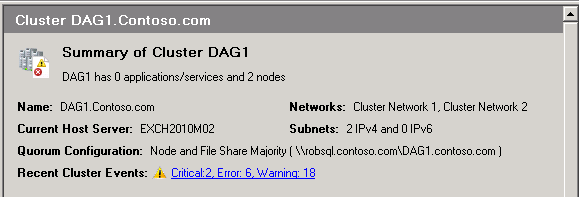
With Node majority only the Nodes are counted no file share witness is used. Yes you may have specified it. but for vote count it is not used. So lets say you have a 3 Node DAG. the cluster will say Node majority

image

If I eject the node it will show “Node and File Share Majority”

image

So what does this really mean. Well in 3,5,7,9,11,13,15 Node DAG’s the file share witness does not play a role or count for a Vote.

In 2,4,6,8,10,12,14,16 Node DAG’s the file share witness will act as a vote. Some will say a deciding vote that is a little misleading. Fact is you have to have Quorum. so the FSW can be offline if enough Nodes are available to maintain Majority things will be fine. this is why it is called “Node And File share Majority”


Hope this helps someone have a great day.

Posted in Exchange | Tagged , , , | 3 Comments

Dealing with challenges with Message Records Management

So one of the Questions I receive most often is around how do I cleanup Peoples mailboxes for them. In Exchange 2003 it was possible to setup a recipient policy really it was a Mailbox policy but because it is under the recipient policy tab some people still call it a recipient policy.

There have been lots of article written about how MRM works. But I want to cover some of the gotcha’s and how to control it. First thing to realize as this runs all the time now. After SP1 of Exchange 2010 it will run And the Schedule does not affect much of anything. The 2 settings that do are message ManagedFolderWorkCycle, and ManagedfolderworkCycleCheckpoint. I will go more into how to set these later.

One of the problems I have seen is people implementing MRM policys all at once and they end up having sort of a Storm with in the system because of the amount of traffic it generates. You have to think about what will happen when you implement this.

potentially you could have:

  • Increased Replication traffic
  • Increased traffic from the clients and the re-download their Cache remember you may be removing lots of email depending on the situation

Ideally MRM is smart enough to throttle the process so you should not see it cripple your server’s processor or RAM. however because of increased replication and client downloads you may see the environment come to it’s knee’s. So remember always plan your implementation out to happen slowly until you have figured out what the load will be.

If by chance you get into a situation where you have a storm created you can do a couple of things first would be to run the Set-mailbox command and $null the workcycle. This can be done by running the following command for each MBX server.

set-mailboxserver  -managedfolderassistantschedule:$null managedfolderworkcycle:$null 

The Managefolderassistantschedule does not really do anything the workcycle stops the process from running so you can at least stop the storm from being worse. Once you have done this. Then you need to figure out how to clean up from this. Remember all mailboxes probably were tagged and just removing the policy will still mean you have some mail to process through that still has tags. So when you set the workcycle back to 1 your storm will start again. so how do you clean this up.

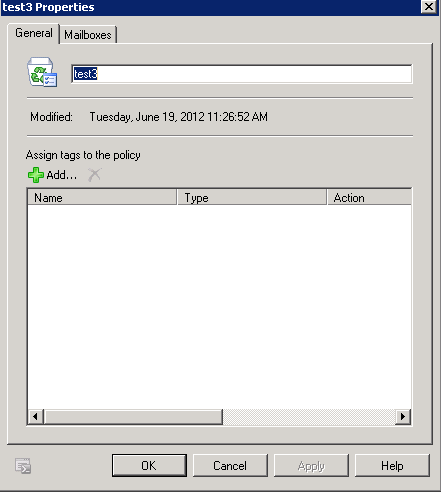
First you can do this by creating a new policy and not putting any tags in it.

image

In my testing you apply this then run Start-managedfolderassistant and it will remove the tags. I will still do this on small groups of users because it may cause some additional traffic. This will put you back to where you started with No TAGS and really no policy. Once you have done the manual process you can turn back on the managefolderworkcycle. Be forwarned this starts immediately so if you have not cleaned every thing up it may happen again.

Another option would be to run the Start-Managefolderassistant on groups of mailboxes until you are caught up. however if it takes a while when you are done you may be behind again and may have a lot of tags to process when you turn the managedfolderworkcycle back on.

Hope this helps someone.

Posted in Exchange | Tagged , , | Leave a comment

Trouble Shooting Exchange Active Sync

With so many devices out there today using Active Sync I decided to write about some of the basics of trouble shooting active sync. But remember in some cases there is not a fix. Because Microsoft has the standards out on the internet any company wanting to implement Active sync can however they all may not implement it the same. As can be shown here at the Exchange ActiveSync Client Comparison Table as well as here http://en.wikipedia.org/wiki/Comparison_of_Exchange_ActiveSync_Clients.  Which is all good information however when a user can’t connect where do I start?

First of all when someone calls saying they can’t connect the first place I look is to open a Exchange Management shell. The command most commonly used would be

get-activesyncdevice This command gives you a lot of basic information to start with. the first command I would run is

Get-Activesyncdevice –mailbox “username” |fl userdisplayname,device*

This will usually give you all the devices the user has and in a format that is easily readable. you should see something like the following pay close attention to the highlighted lines:

UserDisplayName         : company.local/devision/Users/group/johnDoe
DeviceId                : droid1279548654527
DeviceImei              : 351863041439098
DeviceMobileOperator    : AT&T
DeviceOS                : Android
DeviceOSLanguage        : English
DeviceTelephoneNumber   : *******8888
DeviceType              : SAMSUNGSAMSUNGSGH
DeviceUserAgent         : SAMSUNGSAMSUNGSGH/100
DeviceModel             : SAMSUNG-SGH-I897
DeviceAccessState       : Allowed
DeviceAccessStateReason : Global
DeviceAccessControlRule :
DeviceActiveSyncVersion : 14.1

UserDisplayName         : company.local/devision/Users/group/johnDoe
DeviceId                : droid1279548654527
DeviceImei              :
DeviceMobileOperator    :
DeviceOS                :
DeviceOSLanguage        :
DeviceTelephoneNumber   :
DeviceType              : Android
DeviceUserAgent         : Android/0.3
DeviceModel             : Android
DeviceAccessState       : Allowed
DeviceAccessStateReason : Global
DeviceAccessControlRule :
DeviceActiveSyncVersion : 12.0

There are 3 attributes I am concerned with. DeviceAccessState, DeviceAccessStateReason, DeviceActiveSyncVersion and sometimes I am concerned about DeviceUserAgent

DeviceAccessState will tell me if the device is blocked or allowed. So if I am troubleshooting and it says allowed then I need to look elsewhere, more at connectivity and is my CAS or the account working appropriately.

If DeviceAccessState is listed as blocked then I want to look at the reason. The DeviceAccessStateReason can contain the following properties per MSDN article

http://msdn.microsoft.com/en-us/library/microsoft.exchange.data.directory.systemconfiguration.deviceaccessstatereason(v=exchg.140)

:

DeviceAccessStateReason Property:

DeviceRule


Global


Individual


Policy


Unknown


Upgrade


Since the MSDN article does not indicate what each of the property’s relate too. it may be difficult to find the exact problem at this point.

However if it says Global I have found that this is related to the global allow, block quarantine policy’s.

If it says Policy then this is usually related to either the policy was not applied to the device or there is something in the policy that the phone does not conform to.

If it says’ individual. then I start looking at things like get-casmailbox with the following commands

Get-casmailbox –id “username” |fl activesync*

It should return the following

ActiveSyncAllowedDeviceIDs            :{}

ActiveSyncBlockedDeviceIDS           :{}

ActiveSyncMailboxPolicy                  : Policyname

ActiveSyncMailboxPolicyisDefaulted :False

ActiveSyncDebuggingLogging

ActiveSyncEnabled                         :True

Sometimes this will point me in the right direction. Sometimes I have to turn on diagnostic logging on the device to find out what is happening. But the above should be a good start for general purposes. And initial investigation.

Remember this is just my way of doing it there may be others. Please investigate all options.

Posted in Exchange | Tagged , , | Leave a comment