
So many people keep asking how we trouble shoot outlook when users are having issues. This is a bit complicated as there are so many different issues a user can have. However, I am going to try to explain some of the things I think about when trouble shooting outlook.
Outlook is very sensitive to networking problems. lost packets, latency and Jitter can cause all kinds of challenges for outlook. This often times presents as freezing, hangs, and or outlook is totally unusable. But remember freezing and connection issues are different. Freezing happens generally after the outlook Client connects I will write a more in depth article on freezing and hangs here shortly.
However, there are other things that can cause similar behavior or just poor performance in general. If you have read my previous post (https://wordpress.com/post/mitchroberson.blog/111) you may have some of the fixes already applied. That I recommended in that post. However, i wanted to try to explain things more. about how to actually trouble shoot outlook. So we will start with connection issues.
When i trouble shoot I kind of try to follow the OSI model. And I want to find tools that help me give information about how what ever thing I am trouble shooting works. So to troubleshoot outlook one of the most important questions to ask is how and what does it connect to.
One of the best tools to start learning this is built into outlook itself. If you go to the system tray and right click on the outlook icon while holding down the control key. you will find 2 tools. “Test email AutoConfiguration” and Connection status

Connection Issues
I will start with Connection issues. To start with we need to understand how outlook finds what to connect to. if you use the Test Email AutoConfiguration tool shown above it is Real easy to find exactly what it trys’ to connect to. You can do this by simply making sure the email address is correct in the email address field. And you do not need to put a password in if it your account and you has SSO setup properly.
Outlook will take the SMTP domain from the email address that is the part after the @ sign. And apply it to several different urls to try to check. Note if you had Guesssmart and secure Guesssmart authentication boxes checked. You will see there is a feature for pop3 and Imap Autocofiguration. I usually skip these as generally outlook with Exchange or Outlook with M365 do not use those methods of autoconfiguration.
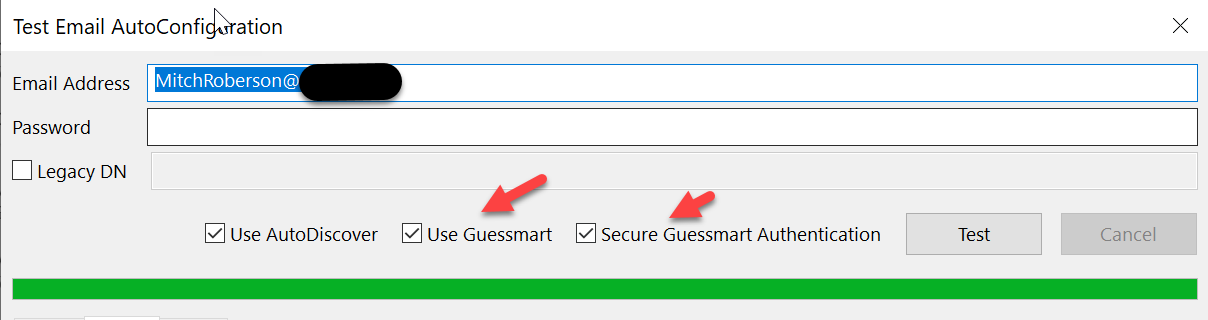
Once you click on test, click on the log tab you will start to see what all outlook checks. But here is the generally used checks it does to find configuration settings.
If you are on your network and outlook has access to the domain. it will attempt to query a service connection point (SCP) that has been added to your ad when you setup Exchange. And usually that will return a URL.
depending on version of outlook it may also query the following:
- https://autodiscover.smtpdomain.com/autodiscover/autodiscover.xml (this is most commonly used by m365 office versions)
- Used by older versions of Outlook
- http://smtpdomain/autodiscover/autodiscover.xml
Once it query’s the above then it makes a connection and pulls down the configuration for outlook and what it should connect to. Most people tend to think it just makes a single connection and then it is done. However there are several things it connects to. And knowing these can help with understanding how teams gets information like address lists and calendar information as well.
If you go to the XML tab you can see what all the URL’s outlook is connecting to. If you look below you may start to see how this helps you trouble shoot.
- https://outlook.office365.com/mapi
- https://outlook.office365.com/owa
- https://outlook.office365.com/EWS
- https://outlook.office365.com/OAB
MAPI: is what outlook connects to, to send and receive email. Notice it is not smtp if you are getting connection errors and the client is not receiving email then most likely this is where you need to be looking.
OWA: is outlook web access, Outlook does not use this much but is there so you can connect to test to ensure it is not an account issue. And shows up several places for the end user to use when they do not know how to get to the web version.
EWS: this is where outlook gets it’s out of office stuff from. So if users are complaining about OOF not working correctly EWS May be your culprit. Also think about teams. this is what teams connects to. In order for it to get calendar information.
OAB: Offline Address book. This is just what it sounds like. Outlook downloads a cached version of the OAB Once every 24 hours. So if this is not updating or when the user clicks the send and receive button and gets an error related to OAB then you may need to look at this more.
Trouble Shooting Connection issues.
Ping and NSlookup are your friends as well as the Outlook Test Autoconfiguration tools. I always start with the Test Autoconfiguration. That will tell me if it is getting the correct configuration information. This relies on On DNS to be setup correctly.
So If the test autoconfiguration fails I would start looking at PING and NSlookup. And since I know what outlook is looking for. based on the tests out of the “Test Autoconfiguration tool” I would start with seeing if those URLS resolve.
So take a look at https://autodiscover.smtpdomain.com/autodiscover/autodiscover.xml
I would try to do a “Ping Autodiscover.smtpdomain.com” check to see if the name resolves to an IP. see if ping works. You can try a tracert to the above see what the results are. Maybe even look at PING -l and bump the packet to a fully loaded packet with -l 1400. Also try the ping -f to turn off fragementation.
Think about what could cause the client not to connect or not able to download the configuration file.
Things like DNS errors or Misconfiguration.
MTU issues Look up PMTUD when you have time.
Network issues.
I am sure there is a lot more I am missing but wanted to get this out to have people start looking at it. Remember this is about outlook connectivity. Not about Performance.

 Mitch's Blog